Set Up Phone Verification in employee.login.pa.gov
Use these steps to add or update your phone number in employee.login.pa.gov so you can receive verification codes by text message (SMS) or voice call when signing in.
What You’ll Need
- You must be able to sign in to employee.login.pa.gov.
- Have the phone you want to register available. You may use a personal phone, a Commonwealth-issued phone, or both!
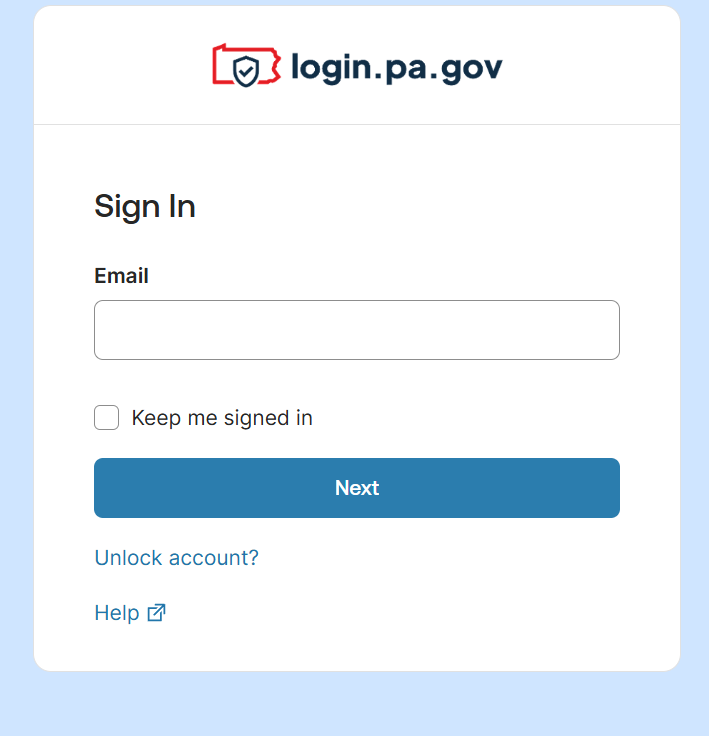
Step 1: Sign in to employee.login.pa.gov
- Open your web browser.
- Go to https://employee.login.pa.gov .
- Sign in using your email and current password.
- You may be prompted to complete an existing MFA.
Step 2: Open Your Security Settings
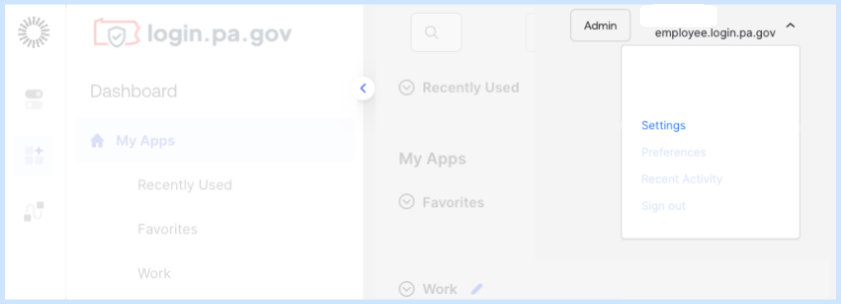
- From the employee.login.pa.gov dashboard, select your profile icon in the upper-right corner.
- Select Settings.
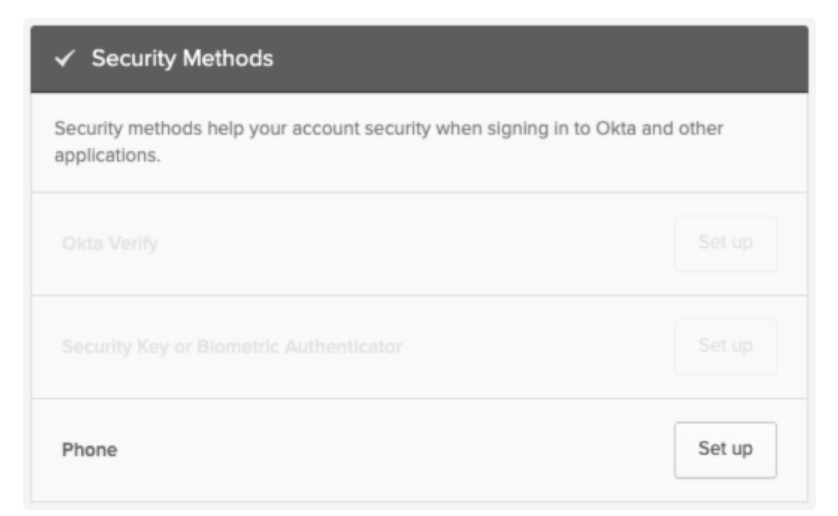
- Under Security Methods, locate Phone.
Step 3: Add a new phone verification method
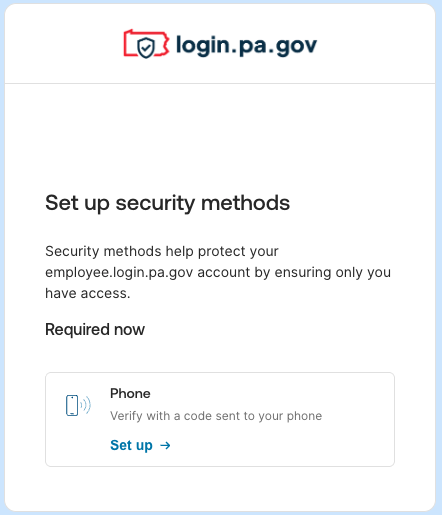
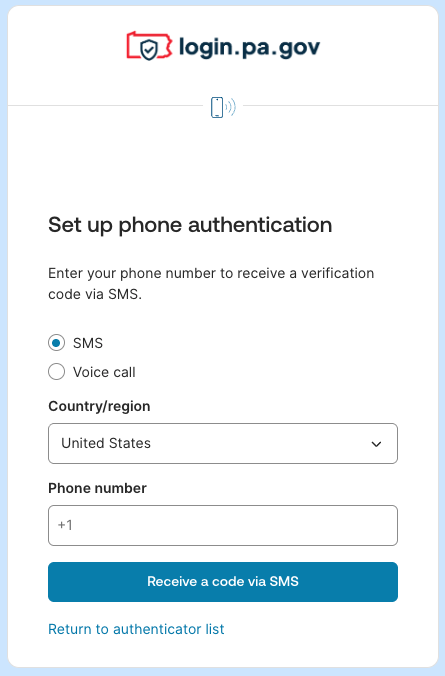
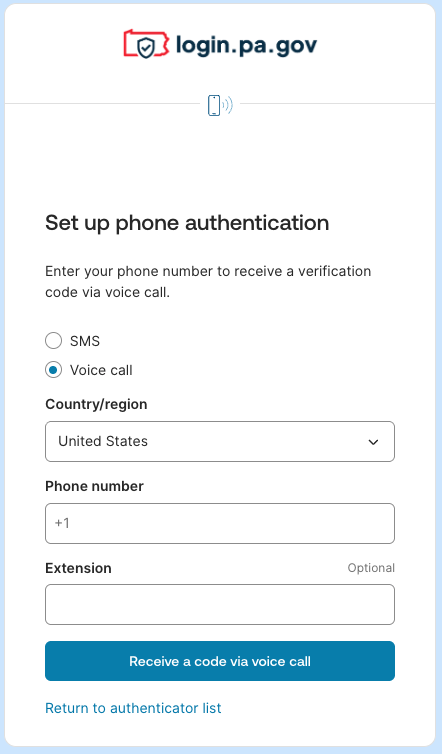
- Select Set up next to Phone.
-
Choose how you want to receive verification codes:
- SMS – Receive a text message.
- Voice call – Receive an automated phone call.
- Enter your phone number for the phone you would like to register.
- Select Receive a code via SMS or Receive a code via voice call.
Step 4: Verify Your Phone Number
-
Check your phone for the verification code.
- If you chose SMS, you will receive a text with a code.
- If you chose Voice call, you will receive an automated phone call that will provide a code for you to enter.
- Enter the code in employee.login.pa.gov.
- Select Verify to complete setup.
Step 5: Confirm Setup
- Your phone will now appear under Security Methods as active or enrolled.